Record where you went, with photos
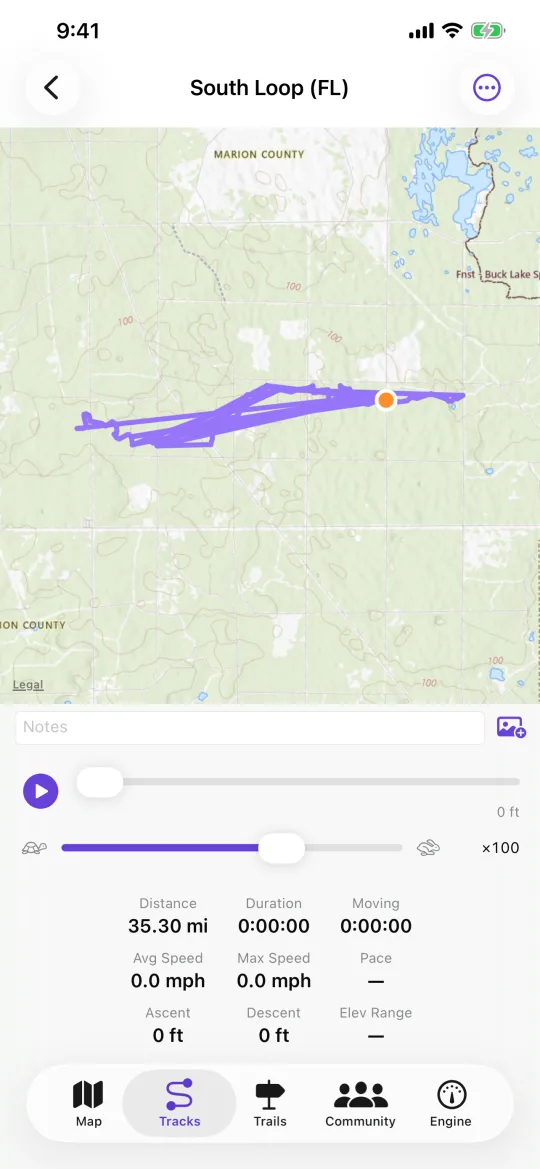
Recording is one button. What you get back is a track with an elevation profile, playback, statistics, and any photos you took pinned to the spot on the map where you took them.
Steps
-
Tap Record
On the Map tab. NavGPS asks for location access the first time, and for the Always upgrade once recording starts — iOS stops delivering position to a backgrounded app otherwise, which would cut your track short at the first screen lock. -
Take photos as you go
The camera button pins each shot to your position at that moment. They also save to your photo library. -
Watch the numbers
Three stats show while recording and you choose which. The expand button makes the first two extra-large for a dash mount. -
Stop and review
Stop, and the track appears under Tracks with its map, elevation profile, playback and statistics.
Worth knowing
- Auto-pause stops the clock when you stop moving, so a lunch break doesn't ruin your moving average.
- Breadcrumbs keep a passive trail even when you are not recording.