Plan a route before you leave the driveway
Planning in NavGPS is four things in order: draw the line, save it, download the ground it crosses, then follow it on the day. All of it works offline once the maps are stored.
Steps
-
Open the route planner
Map tab → the route planner icon in the left tool column. The planner panel appears at the bottom. -
Tap out the route
Each tap on the map adds a point, and the running distance updates as you go. The undo arrow removes the last point if you overshoot. -
Save it as a track
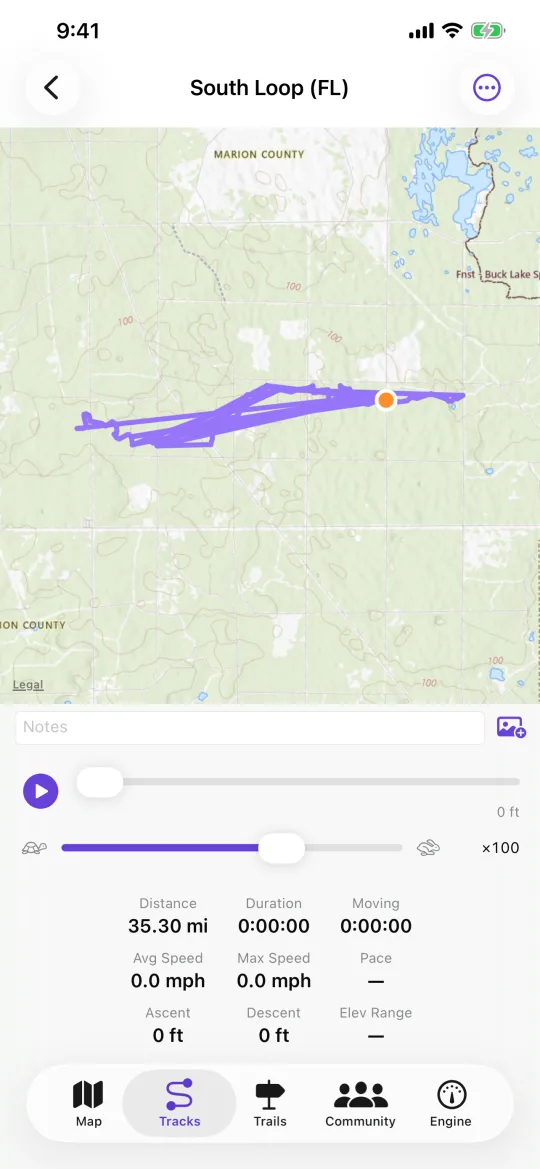
Tap the save icon once you have at least two points, give it a name, and it lands in Tracks alongside your recorded trips. -
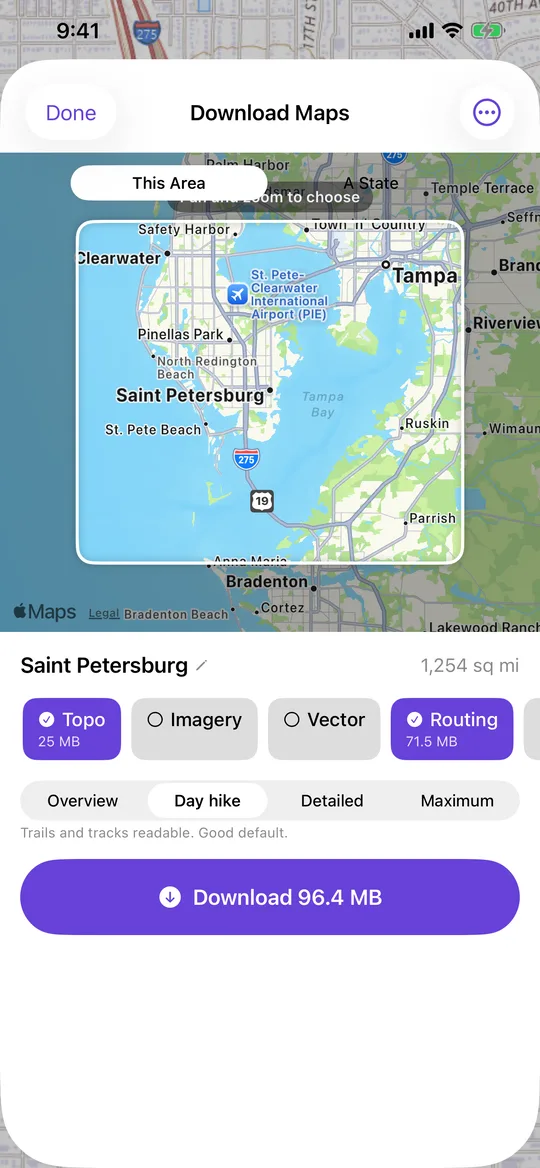
Download the maps it crosses
Open the download sheet and choose Along a Track, then pick the route you just saved. That downloads a corridor either side of the line rather than a wasteful rectangle around it. -
Follow it on the day
Tracks → open the route → Follow Track. The line is drawn on the map with start and end flags, and your position moves along it.
Worth knowing
- Measure, next to the planner in the tool column, gives distance and bearing between two points without saving anything.
- For a route along real roads instead of straight lines, drop a waypoint and use Route Here (offline) — it routes on the road data you downloaded, with no signal.
- A planned route exports as GPX like any other track, so it can go to a GPS unit or another app.