Bring in routes from anywhere else
NavGPS reads GPX, KML and KMZ. Tracks become tracks, placemarks become waypoints, and everything lands in the Tracks tab ready to follow or export again.
Steps
-
Get the file onto the phone
Save it to Files, AirDrop it, or open the attachment straight from Mail — NavGPS registers as an app that opens GPX, KML and KMZ. -
Open the importer
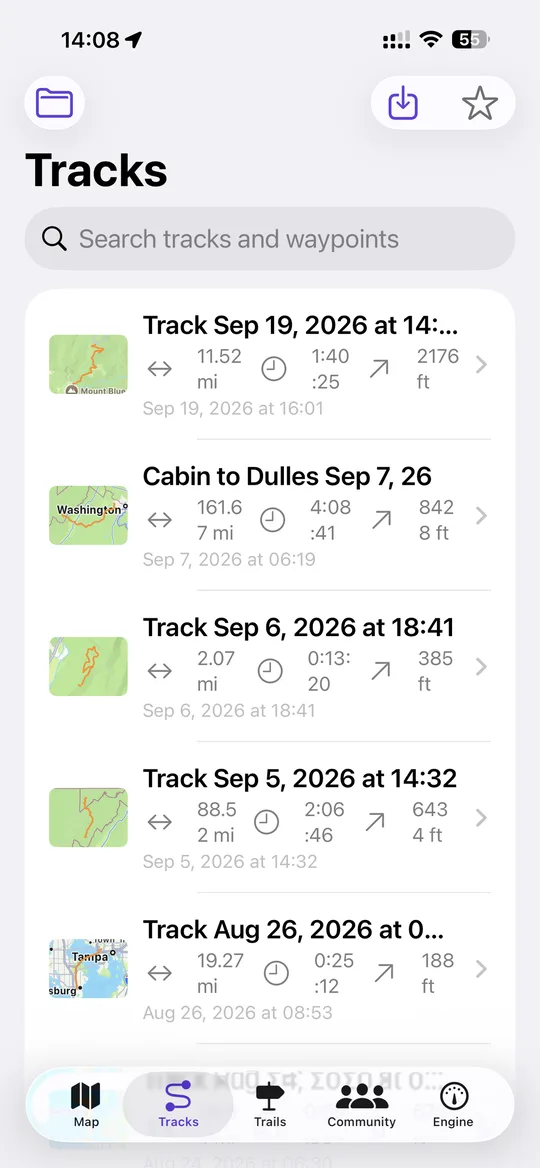
Tracks tab → the import button, then pick one or more files. -
Check what arrived
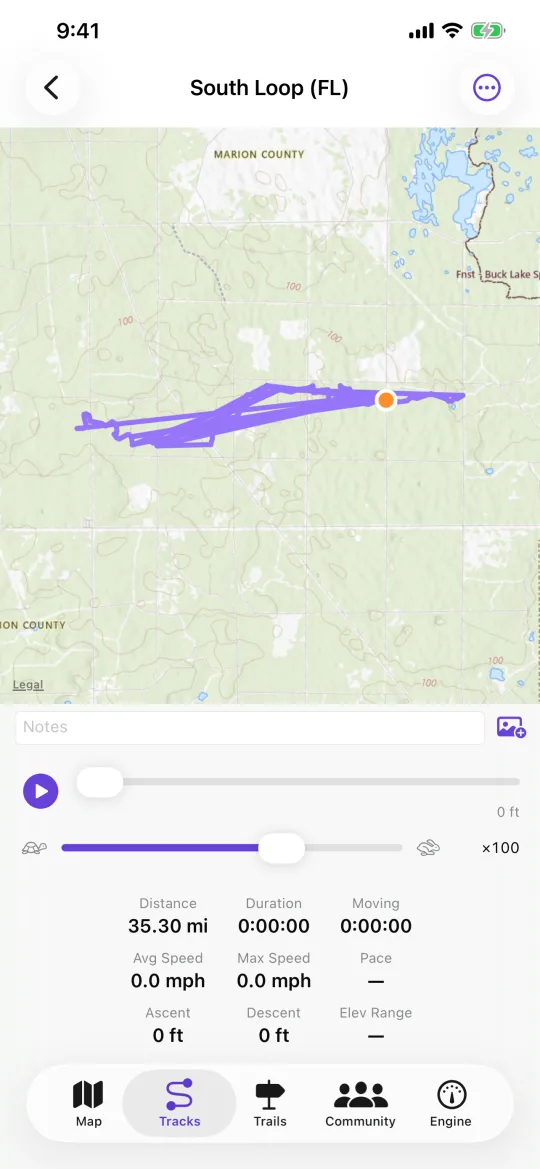
NavGPS reports how many tracks, points and waypoints it imported. Tracks appear in the list with a map, an elevation profile and playback. -
Follow or export it
Open an imported track and tap Follow Track to navigate it, or export it as GPX to send on.
Worth knowing
- KMZ files are read directly — no need to unzip them first.
- Files are identified by their contents, not their extension, so a KML that someone saved with a
.gpxname still imports correctly. - From a KML,
Pointplacemarks become waypoints and lines, polygons and recorded Google Earth tracks become tracks.