Download maps for where you're going
NavGPS downloads the area you choose at the detail level you choose, and shows you the size before anything is fetched. Once it is stored, the map, search and offline routing work with the phone in Airplane Mode.
Steps
-
Open the download sheet
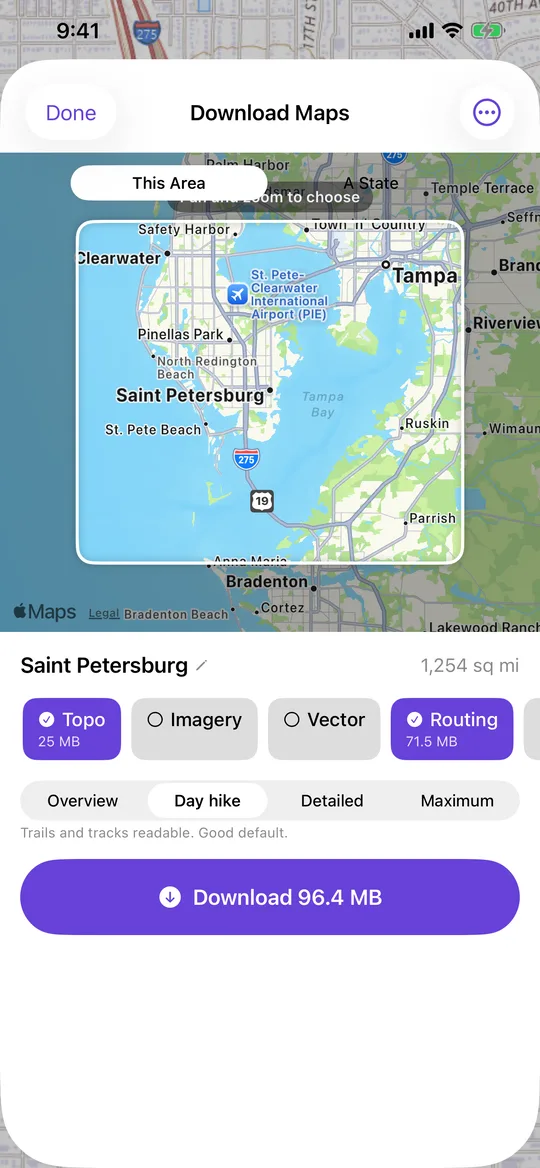
On the Map tab, tap the download icon in the tool column down the left edge. -
Choose the area
This Area takes what is on screen. A State follows the real state border rather than a rectangle. Along a Track downloads a corridor either side of a route you already recorded. -
Choose the layers
Topographic, satellite, street maps, roads and speed limits, places and plate readers are each a separate row. Topo and roads are ticked already. -
Set the detail level
Higher zoom means sharper maps when you zoom in, and a bigger download. The size estimate updates as you change it. -
Tap Download
The size is on the button itself. Downloads continue after you close the sheet, and keep going while you use the rest of the app. -
Check it offline
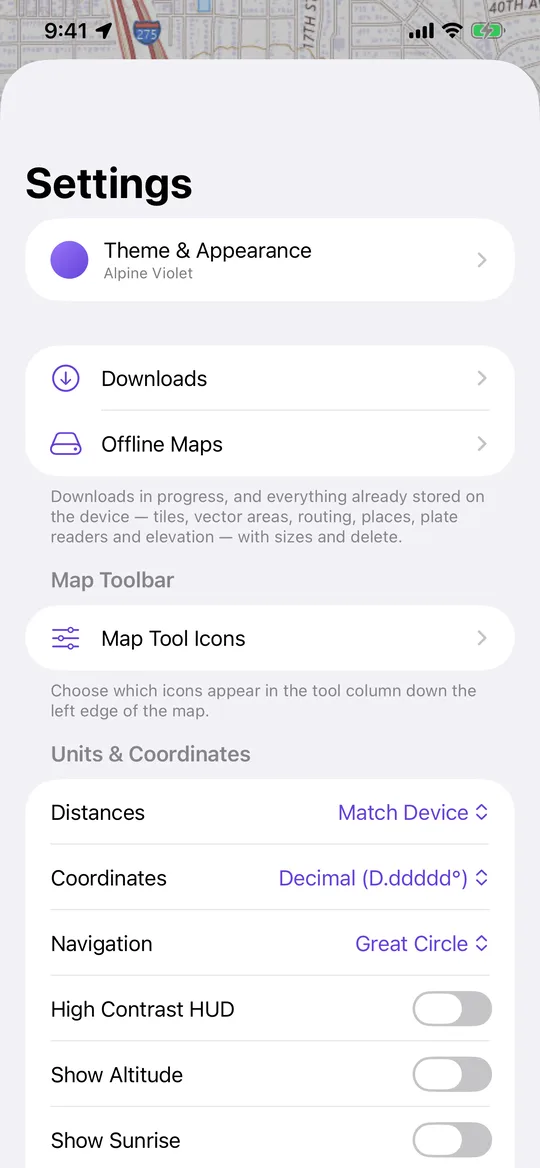
Turn on Airplane Mode and pan around the area you downloaded. Everything you have stored is listed, with its size and a delete button, under Settings → Offline Maps.
Worth knowing
- With Download Maps Automatically on (Settings → Offline Maps), NavGPS fetches the area you're looking at as you travel, so most of this happens without you asking. Turn it off to choose every area by hand.
- One area downloads at a time. Splitting a weak signal between two makes neither finish.