Arrange the gauges you actually watch
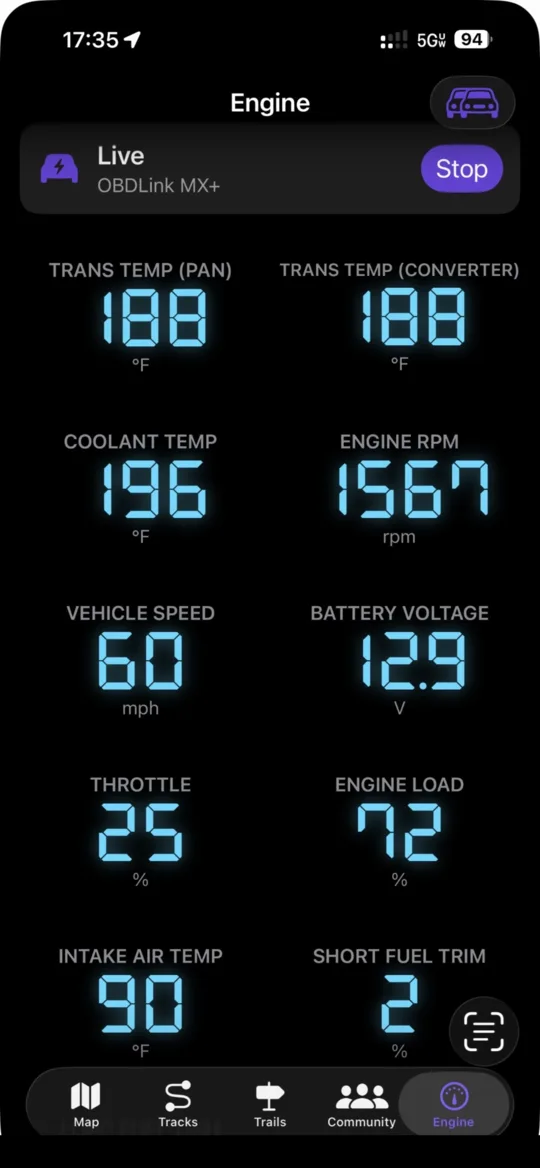
Your vehicle answers with whatever parameters it supports, and not all of them matter to you. The Dashboard Layout screen decides what shows, in what order, how big, and in which style.
Before you start
- An OBDLink MX+ connected, and one completed read from the vehicle
Steps
-
Open Dashboard Layout
Engine tab → the ••• menu → Dashboard Layout. -
Turn parameters on and off
Each parameter your vehicle answered has a switch. The header counts how many of them are showing. Anything you add under Custom Parameters appears here too, marked custom. -
Drag to reorder
The order on this screen is the order on the dashboard, top-left to bottom-right. Drag handles are always visible — there is no Edit button to find first. -
Pick a style per parameter
Digital gives the seven-segment readout. Dial gives a real gauge with warning arcs — worth it for the one or two things you watch rather than read. -
Pick a size
A large parameter takes the full width of the screen. Normal ones sit two to a row. Transmission temperature is the usual candidate for large.
Worth knowing
- Reset to Default is on the same screen and restores the original order, styles and sizes.
- To read something your vehicle exposes that no standard parameter covers, use Custom Parameters on the same menu — you supply the request and the formula, usually from a forum for your model.