Connect the OBDLink MX+ and read live engine data
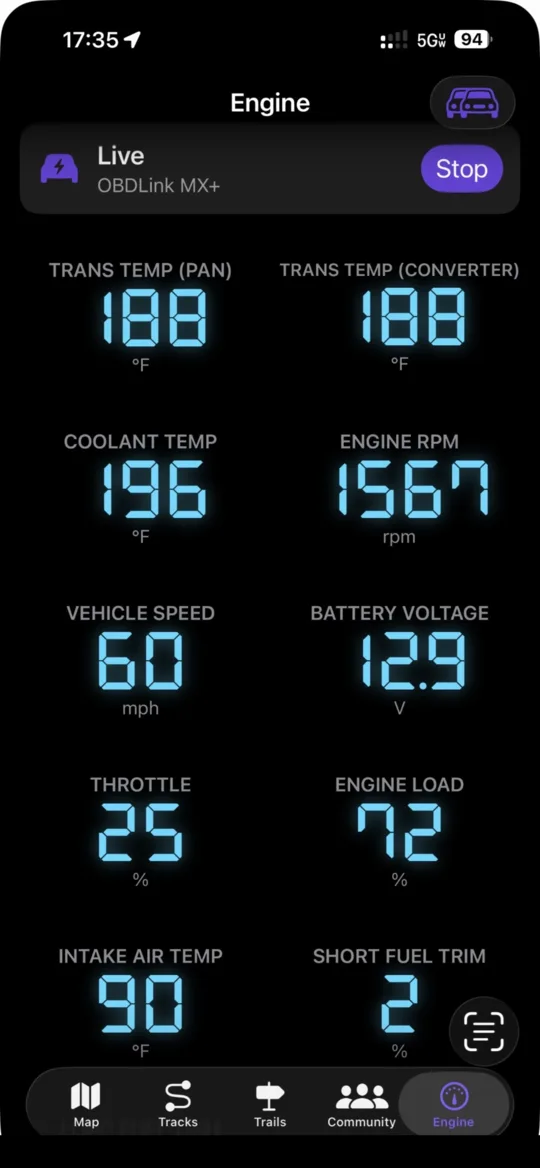
NavGPS reads live engine data through an OBDLink MX+, which connects over Apple's MFi Bluetooth rather than Bluetooth LE. That changes the pairing steps, so they are worth following in order.
Before you start
- An OBDLink MX+ adapter
- A vehicle built in 1996 or later (when OBD2 became mandatory in the US)
Steps
-
Plug in the adapter
Find the OBD2 port — usually under the dash on the driver's side — and plug the MX+ in. Turn the ignition on. -
Pair it in iOS Settings
Open iOS Settings → Bluetooth and pair the OBDLink. This step is required: the MX+ is a classic Bluetooth MFi accessory, so it must be paired at the system level first. -
Close any other OBD app
The adapter talks to one app at a time. Force-quit the OBDLink app, Torque, or anything else that may have claimed it. -
Tap Connect
Open the Engine tab in NavGPS and tap Connect. The first reading takes about ten seconds while the adapter works out how your vehicle talks. -
Identify the vehicle
NavGPS reads the VIN and offers to save the vehicle, so readings, calibration and fuel settings are remembered per truck. Turn on Auto-Connect under Vehicles and it reconnects next time by itself.
Worth knowing
- If the adapter does not appear, the Diagnostics screen lists every accessory iOS is offering the app and what each one advertises — that is the fastest way to see what is actually connected.
- With no adapter connected the Engine tab says so. It never shows invented numbers: a gauge cluster that makes values up is worse than none.