Trail Library
The Trail Library is where recorded tracks become routes other people can use. Anyone can publish one of their own finished tracks with a title, a description and an activity; anyone else can browse what has been published near them or in a given state, look at the route, its elevation gain and its photos, and download it. A downloaded trail lands in your own track library as an ordinary track — followable, and fully offline from then on. The same library is browsable in a web browser at navgps.app/trails.
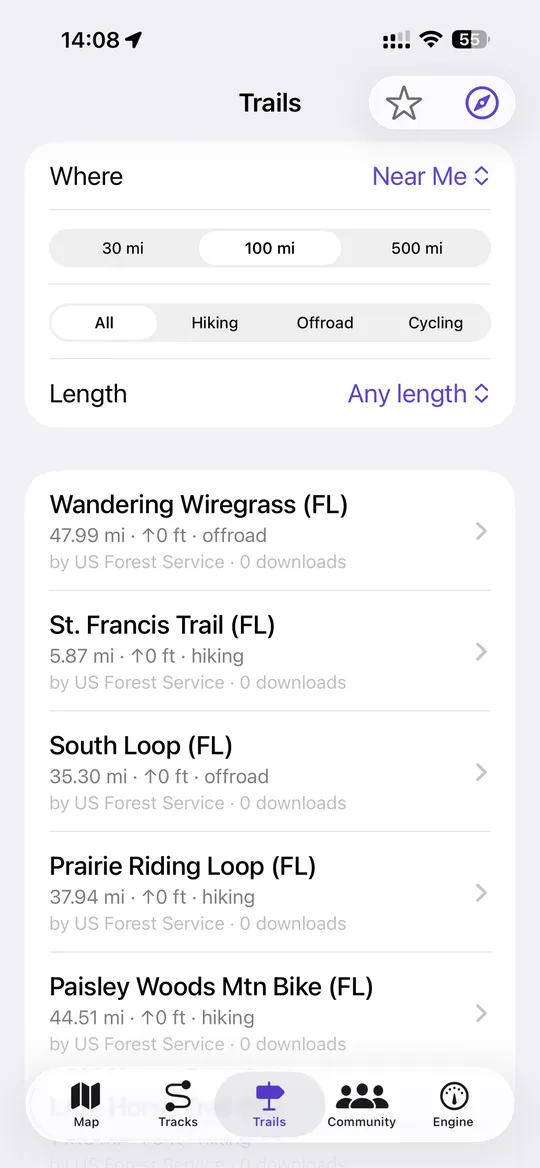
Finding something near you
The default search is around your current GPS fix, within 30, 100 or 500 miles. If you would rather look somewhere else, the location picker lists every state that has published trails along with how many each one has, so you can see where there is anything to find before you go looking. On top of that you can filter by activity — hiking, offroad or cycling — and by length in bands from under five miles to thirty-plus, and search the titles and descriptions by text. Each row shows the distance, the total ascent, the activity, who published it and how many times it has been downloaded.
Publishing one of your own
Publishing is an action on a finished track: give it a title, optionally a description and an activity, and it appears in the library. It needs cloud sync, because the library serves the route from the copy on the server rather than from your phone — if the track's points have not been uploaded yet, publishing says so and asks you to sync first rather than listing an empty route. The bounding box and point count are computed on the server from the points themselves and never taken from the app, so the search filters cannot be fooled by a bad client. Re-publishing updates the listing in place, and unpublishing removes it.
Looking before you commit
A trail's own screen leads with an aerial snapshot of the route, so every trail has a visual whether or not anyone has photographed it. Below that come any photos attached to the route's own waypoints, then openly licensed photographs from Wikimedia Commons taken near the trail's midpoint, each badged with its licence and linking back to its source page. Then the numbers: distance, ascent, activity, download count, the author, the number of points in the route, and the description. You can also throw the route into the 3D terrain view before deciding.
The preview route is sent as at most 600 points, which is enough to draw and cheap to fetch; full fidelity comes with the download.
Downloading, and keeping it
Downloading a trail pulls its points into your local database as a new track, after which it behaves like anything you recorded yourself: it has an elevation profile, it can be followed on the map, it can be exported as GPX, and none of it needs a connection again. A published trail also has a public GPX URL that needs no sign-in, and fetching it increments that trail's download count.
Starring a trail saves its summary on the phone, so your favourites list is readable with no signal even though the search that found them is not.