Settings
Most of what Settings does is decide how much the app is allowed to do on its own: whether it keeps a passive trail, whether it announces your pace, whether it caches tiles ahead of you, whether it uploads anything at all. The rest is units, storage with real sizes attached, and the credits for the data the maps are built on.
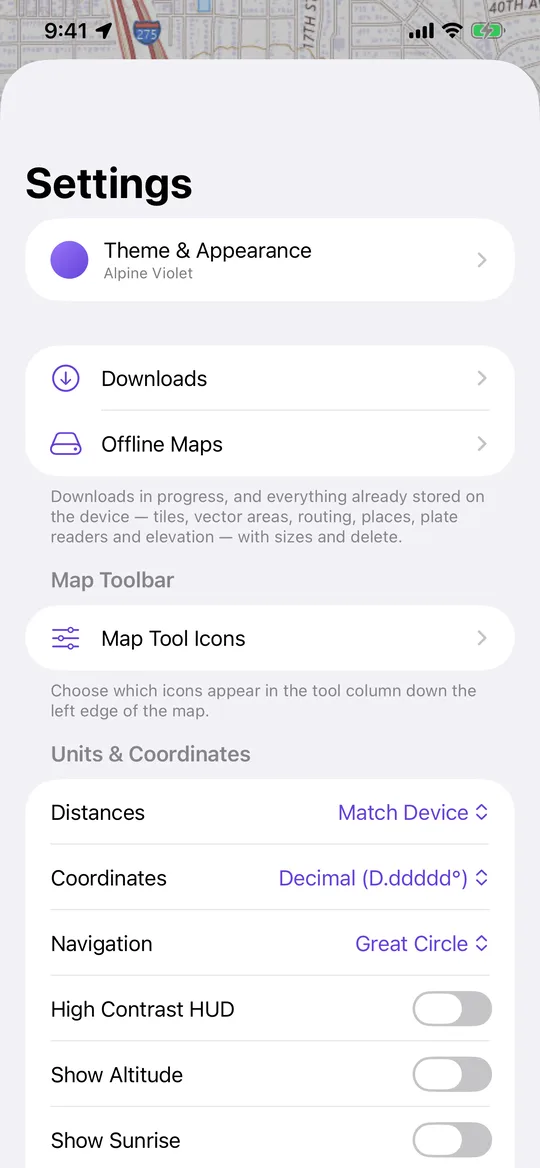
Units and coordinates
Distances follow the device by default, or can be forced to miles and feet, kilometres and metres, or nautical miles and knots — where elevation stays in feet, which is the marine convention. Coordinates display as decimal degrees, degrees and decimal minutes, degrees-minutes-seconds, UTM, MGRS, or the British national grid; the grid formats fall back to decimal in the polar regions they do not cover. Bearings can be computed as great circle or rhumb line. There is a high-contrast option for the map's heads-up panels, because solid backgrounds beat translucency in direct sunlight, and switches for showing altitude, sunrise and sunset alongside the position readout.
Storage, with the sizes attached
Two screens cover offline data: Downloads, which shows everything currently transferring anywhere in the app and lets you pause, resume, retry or cancel it, and Offline Maps, which lists everything already on the phone — downloaded areas, maps picked up by browsing, imported charts, street maps, roads, places, plate readers and terrain — with a size on every row, the total, and how much space the phone says is actually free.
Place packs are managed here too. They let you search for fuel, food, lodging and parts with no signal, and come either from the in-app catalogue by region or from a pack you built yourself and imported. The data is Overture Places under CDLA Permissive 2.0, credited in the app wherever pack results are shown; when no pack covers where you are, place search falls back to Apple's search, whose results are displayed but never written to disk, which is the whole reason the offline layer is Overture rather than a cache of somebody else's API.
Predictive tile downloads are off by default. Switched on, the app looks ahead along your heading while you are moving with a live fix and quietly caches USGS tiles for the road ahead and the corridor around it, so driving into a dead zone does not produce a blank map. It applies to the USGS raster layers only, and it uses cellular data while there is any.
How recording behaves
Auto-pause and the breadcrumb trail are both here, with what they do spelled out rather than implied: auto-pause stops storing points after about fifteen seconds of standing still and resumes when you move, and the breadcrumb trail keeps a passive line while the app is open and not recording, in the foreground only, kept for twelve hours, saveable as a track from the map's layers menu.
Voice announcements read out distance, elapsed time and pace at a cadence you pick — every minute, five or ten minutes, or every mile or half mile — and duck music briefly rather than stopping it. The offline routing profile chooses whether turn-by-turn routes are built for walking, cycling or driving. The recorder's three live fields are each configurable from distance, time, moving time, pace or speed, altitude, ascent and descent, and the first two are the ones the jumbo recorder view blows up.
Safety and sync, both optional
Crash detection is a single switch, described with its own limits: it watches for a hard impact followed by the vehicle stopping while a drive is recording, it asks you first and gives you a countdown to say you are fine, it only tells your Family Circle if nobody answers, it cannot see low-speed impacts, and it is not a substitute for calling 911.
Cloud sync is off unless you turn it on, and tracks record locally either way. With it on, points upload in the background while you are recording, which is what makes a shareable live link possible; dead zones are expected and sync resumes where it left off rather than starting over or duplicating anything. Local storage stays the source of truth. From here you can run a full sync of everything pending, open your own tracks page in a browser, share that link, or sign in on the web so the same map, tracks and photos open at navgps.app.
Vehicle, appearance and credits
The vehicle section holds the adapter and vehicle list with auto-connect, the OBD-II diagnostic screen, and the switches that decide which live engine readings appear in the map's panel — transmission temperature, coolant, voltage, OBD speed and fuel range. Appearance covers the accent theme, which flows through every control and into the colour your recorded tracks are drawn in, light or dark mode, which icons appear in the map's tool column, and which photo or video plays when the app opens.
The About section carries the version and the attribution the data requires: the NOAA chart download portal, the USGS National Map, map data © OpenStreetMap contributors, and vector tiles by OpenFreeMap.