Offline maps
The map is the part of a GPS app that has to work where there is no cell service, so in NavGPS every layer is something you can put on the phone before you leave. You choose an area on a map, tick the layers you want for it — USGS topo, USGS imagery, an OpenStreetMap vector area, routing and posted speed limits, places, mapped plate readers — and the estimated size appears on the button that starts the download. Imported NOAA charts and the elevation data behind slope shading sit in the same inventory, so there is one answer to what is stored and what it costs.
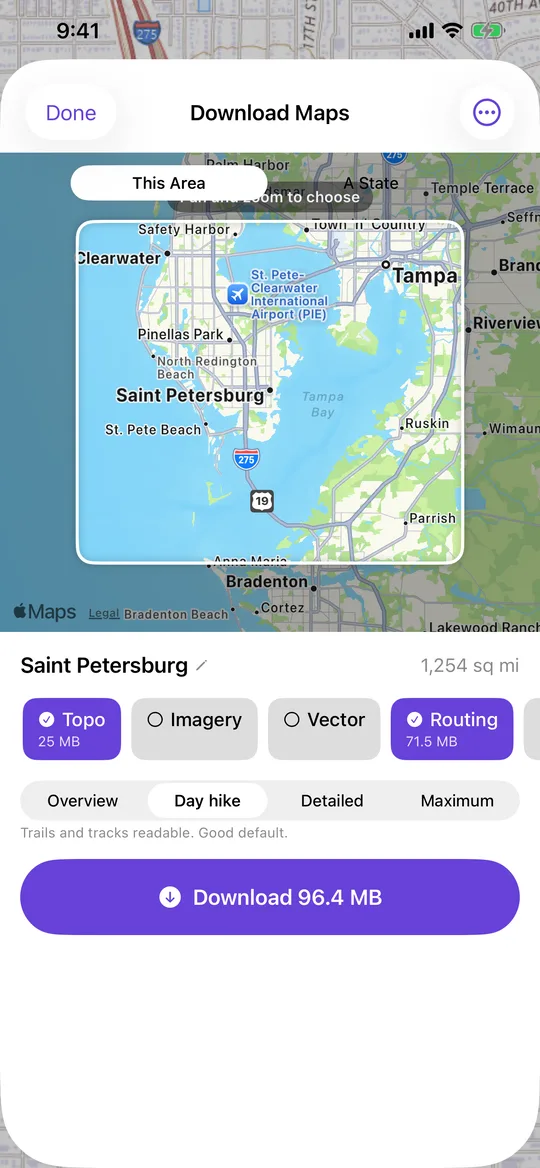
One screen, and the area is the screen
The download screen used to be a settings form — a name field you had to fill in first, a row per layer, and the Download button below all of it, out of reach behind the keyboard and with no way to see the area without leaving the screen. It is now a map you pan and zoom. The selection is the middle of the view, inset so it reads as a selection rather than “whatever happens to be on screen”; everything outside it dims, so what you are about to download is unmistakable without reading a word.
Each layer is a chip with its own estimated size on it, and the total sits on the download button, because the size and the decision should never be on different screens. You pick how much detail you want — Overview, Day hike, Detailed or Maximum — and each one says what it costs: Day hike keeps trails and tracks readable, Detailed is roughly four times the size, and Maximum pulls everything available, which over a whole state runs to tens of gigabytes. Past eight gigabytes the screen tells you plainly that this is more than most phones have free. The area names itself after wherever you are pointing, and you can tap the name to change it, so you can tell your downloads apart later without having to type anything up front.
A state is its outline, not a box around it
You can download a whole US state instead of drawing a box, and the state is its real polygon. A box around Florida is 69% water; downloading it would triple the tiles to cover the Gulf of Mexico. The outlines ship with the app — about 70 KB, derived from public-domain US Census boundaries — because needing a network round-trip to pick a state to download offline maps for would be absurd. They are deliberately coarse: the finest tile ever fetched is about 600 m across, and the outline is already far finer than that. Size estimates sample the polygon against its bounding box so a coastal state is not quoted at the price of the ocean around it.
There is also a corridor download: all the tiles within 250 m, 500 m or a kilometre of a recorded track. For a long route that is far smaller than any box that would contain it.
A download survives leaving the screen
Downloads are owned by a queue that outlives the sheet that started them, so closing the screen, switching tabs or quitting the app does not cancel the work; you can watch, pause, resume or cancel from the map's status pill or from Settings. One job runs at a time on purpose — sharing the connection between two big downloads out in a dead zone makes both slower and neither finish, which is the opposite of what someone parked at a trailhead needs.
A download remembers what you asked for and how far it got, not a list of pieces, so it can always work out where it was. Force-quit halfway through and it resumes near where it stopped rather than starting over. A download the app was killed during is treated as paused, not as still running. When iOS suspends the app the download is parked cleanly and picked back up next launch, without you having to notice anything happened. Retrying one that finished with errors fetches only what is actually missing.
Deleting one area never breaks another
Two downloads that overlap share the ground in the middle. Delete one and NavGPS removes only what no other area still needs, so the second one keeps working. The size shown beside an area is what deleting it would actually free, not what it covers — the number you are shown is the number you get.
Map data picked up just by panning around online is listed separately, and it is the only thing emptying the cache removes. Areas you deliberately downloaded survive. Before a download starts, the screen says whether you already have this ground covered, and roughly how much overlaps — but it never stops you, because refreshing an old area or going back for more detail are both good reasons to download somewhere twice.
Everything stored, in one list
NavGPS stores six different kinds of thing for offline use — topographic and satellite maps, street map areas, roads, places, plate readers and terrain elevation. One of them used to have no screen at all and could grow to hundreds of megabytes where nobody could see it. The Offline Maps screen now lists every one, with the total stored, how much space the phone has left, and a delete button on each row.
The rows say which kind of thing they are, because that changes what deleting means. A downloaded map area or an imported chart is something you chose. Browsed tiles and the elevation cache fill themselves — the elevation data is sampled whenever slope shading, line of sight or the 3D view needs terrain — so for those the action is “empty”, and they refill on demand. Each vector area is listed by name, date and ground area, because a single row reading “vector areas, 119 MB” gives you no way to decide whether you still want them.
Layers, charts and overlays
The base maps are USGS topographic and USGS satellite (from The National Map, public and free), a street map that stays sharp however far you zoom in, Apple Maps, and any chart you have imported yourself. NOAA publishes its nautical charts region by region and the layer picker links straight to the download page; an imported file is copied in, checked that it really is a map before being accepted, and never written to afterwards.
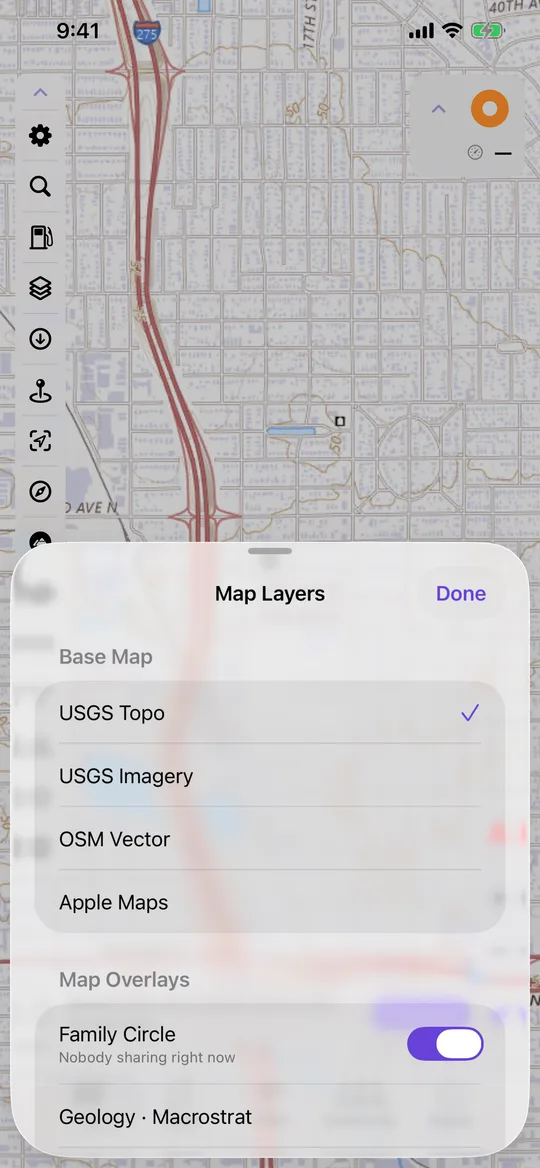
On top of the base map go terrain shading, slope-angle shading, weather radar, geology (Macrostrat or USGS), streams and rivers, watershed boundaries, grid lines, a posted speed-limit sign, mapped licence plate readers, and your Family Circle's pins. Slope angle is computed on the device from elevation data the app has already cached, so it works offline anywhere terrain has been sampled, and its colour bands follow the convention backcountry and avalanche maps already use — clear below 27°, through orange at 30–34° where most avalanches start, to dark over 50°. The same bands read as an off-road warning: past roughly 30° is beyond most stock vehicles.
Where a toggle depends on data you may not have, the sheet says so instead of drawing nothing and leaving you to guess: the speed-limit sign explains that limits come from downloaded routing data and that roads without a posted limit show nothing rather than a guess, and the plate-reader row reports how many are stored. Zoomed in past a source's deepest tile, the map crops and upscales the tile above instead of going blank — blurry but navigable beats empty.